← Back to Work
006 / Case Study

The Lilypad Project

Building a command center for an AI agent team—and then letting the agents maintain it themselves. React, TypeScript, terminal aesthetics, and a feedback loop that gets tighter every week.

Timeline
Ongoing
Role
Creative Director
Tools
React, TypeScript, Vite, Express, Convex

The Problem

Once I had eight AI agents handling real daily work—design, trading analysis, event planning, writing, data architecture—the immediate problem wasn't capability, it was visibility. I couldn't tell at a glance what any of them were doing, whether they'd picked up their assigned tasks, what they'd completed overnight, or why one of them had gone silent. Checking on each agent meant opening separate terminal sessions and reading through log files, which defeated the purpose of having agents handle work autonomously.

The monitoring tools that exist for software infrastructure—Grafana, Datadog—are built for server metrics and error rates, not for understanding whether an AI agent is making progress on a design revision or stuck in a loop. I needed something purpose-built: a command center that treats AI agents the way a project manager treats a team of people, with task boards, review queues, and status indicators that tell a human story instead of dumping raw telemetry.

How It Was Built

Hop, my main orchestrator agent, built Lilypad from a design brief I wrote. The brief specified the aesthetic direction (terminal-first, Arch Linux-inspired, not a SaaS dashboard), the tiered priority of features (monitoring first, then project management, then knowledge and activity), and reference points for the visual language—htop, lazygit, Fallout terminals, NORAD displays. Hop translated that into a React 19 application with TypeScript and Vite on the frontend and an Express server handling the API layer, deployed it to the server behind GitHub OAuth, and had a working first version within a single session.

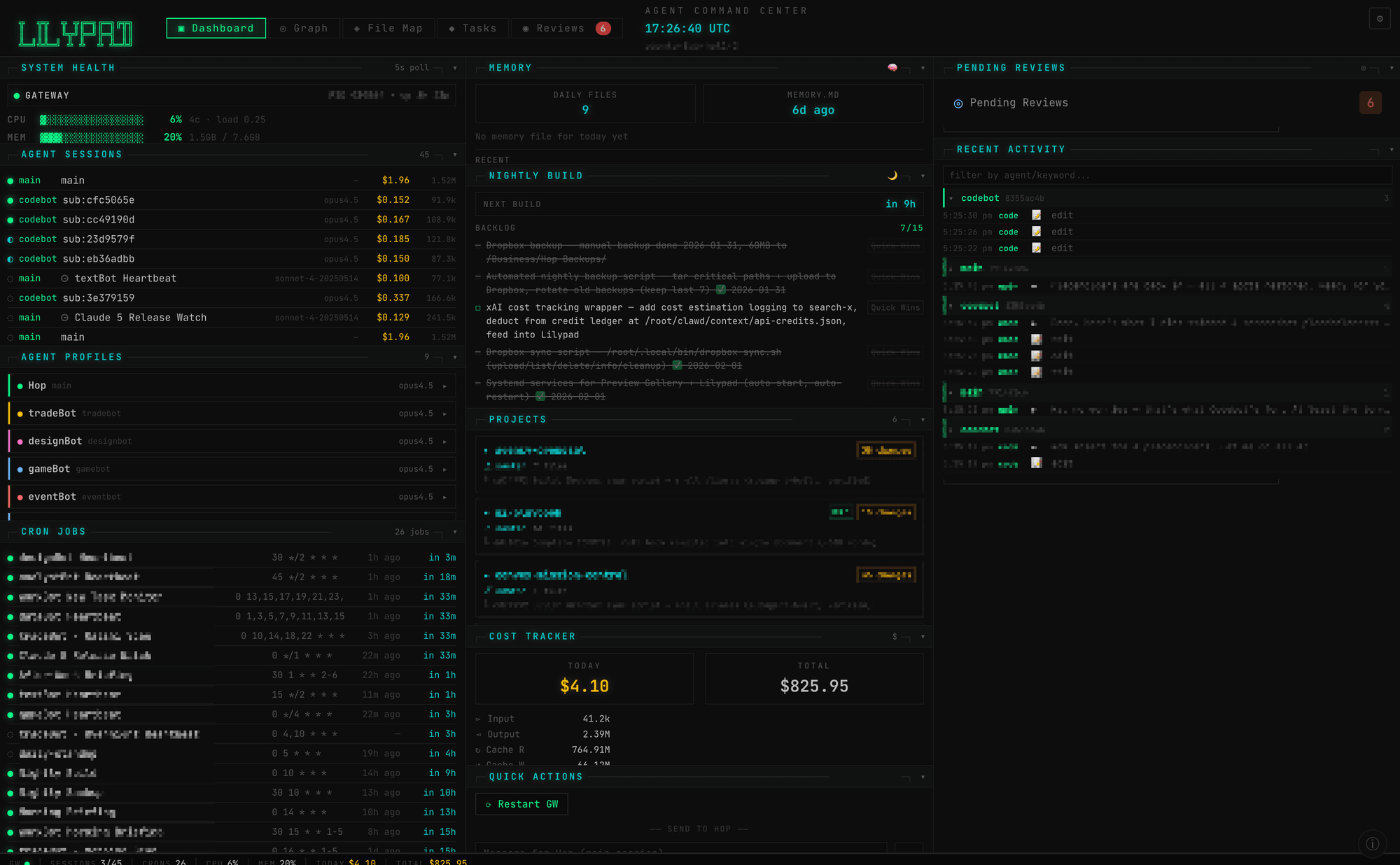
Dashboard overview — the dense multi-panel home screen showing system health, agent sessions, cost tracking, and cron status

That first version had about ten panels: system health, agent sessions, cron jobs, cost tracking, projects, quick actions, memory, agent profiles, and an activity feed. Over the following days, features accumulated fast. A force-directed graph view for visualizing agent relationships. A file map spanning three tiers—server, Dropbox, and GitHub. A full Kanban task board wired into our Convex real-time database. Each addition came from a specific frustration I hit while managing the team, not a feature roadmap.

The Aesthetic

Lilypad doesn't look like a SaaS dashboard. The default theme is terminal-first—near-black backgrounds, JetBrains Mono typography, Unicode box-drawing characters for panel borders, matrix-green accent colors. Collapsible sections use ▸/▾ toggles. Agent names glow in their assigned colors. The whole thing reads more like htop than any React dashboard template.

That choice wasn't cosmetic. The information density that terminal aesthetics afford is the actual point. I can see system health, active sessions, cron schedules, cost breakdowns, project status, agent profiles, memory state, and a review queue all on a single screen without scrolling. A typical design-system approach with cards and white space would spread the same information across three screens. When you're checking a dashboard between meetings on your phone, fewer taps to the answer you need is the only metric that matters.

Five Views, Five Questions

Lilypad is organized into five tabs, each answering a different question I found myself asking repeatedly.

The Dashboard is the home screen—a dense, multi-column grid answering "what's happening right now?" System health gauges show CPU, memory, and disk usage with ASCII progress bars, refreshing every five seconds. An agent sessions panel lists every active conversation context with its model, token count, and estimated cost. Cron jobs display status dots—green means it ran recently, grey means something's off. Agent profiles show each persona's model, top skills (scraped from session logs), and expandable excerpts from their SOUL.md. A cost tracker breaks down token spend by session. Quick actions let me restart the gateway, message Hop, or spawn a sub-agent without touching a terminal. And a pending reviews widget shows how many deliverables are waiting for my attention.

The Tasks view is Mission Control—a Kanban board that coordinates work across all agents. Five columns: Inbox, Assigned, In Progress, Review, Blocked. Each card shows priority (colored dot), title, age, assignee, and tags. Expanding a card reveals its full description, a comment thread, and inline editing—double-click a title to rename it, click the priority dot to cycle it, change status from a dropdown right on the card. An agent status bar across the top shows which agents are active, idle, or offline with color-coded indicators derived from live session data. There's a "Ping Agents" button that spawns staggered wake-up calls to every agent with pending tasks. A filterable activity stream runs down the right sidebar. This is the view that turned a collection of independent processes into something that feels like managing a team.

The Reviews tab is arguably the most consequential. When agents complete creative work—a case study draft, a design asset, a revised landing page—the deliverable lands in a review queue. I can preview HTML files in a live sandboxed iframe (with a built-in code editor, version history, and PDF export), view rendered Markdown, or inspect images. Each item has Approve and Reject buttons. Approving creates a follow-up finalization task for the originating agent. Rejecting with feedback generates a revision task that routes back to the agent with my notes attached. The queue also pulls in Mission Control tasks that have reached "review" status, tagged with a cyan badge so I can distinguish them from gallery assets. This closed the loop that was previously just me checking output files manually and messaging corrections through chat.

The Graph view renders an interactive force-directed diagram of how everything connects—agents, projects, tools, data stores, identity files. Green nodes for agents, cyan for projects, purple for tools, amber for data stores. Click a node to see its description, file path, and connections. Drag to reposition, scroll to zoom, hover to highlight relationships. It's the view I use least often, but when I need to explain the architecture to someone or trace a communication path, it's the only one that works.

The File Map answers "where is everything?" A navigable tree across three tiers: server filesystem (agent workspaces, skills, scripts, the Lilypad source itself), Dropbox (synced folders with file counts and sizes), and GitHub repositories (with descriptions and last update times). When I need to check what the copywriter drafted or what data the analyst pulled, I go here instead of SSH-ing into the server.

How the Agents Update It

The most interesting part of Lilypad might be that the agents it monitors are also the ones who maintain it. When I needed a QA audit, I spun up codeBot—a dedicated engineering agent—and pointed it at the application. It traced 47 user-facing actions, found that 83% were working correctly, identified four dead-end features that had UI gaps (task creation, reassignment, inline editing, an activity feed component that was defined but never rendered), and flagged four missing features (filters, sorting, a done-tasks archive, drag-and-drop). The whole audit took under two minutes and produced a structured report I could act on.

The improvement sprint that followed was a three-agent collaboration. My analyst agent wrote a UX specification. My data agent wrote a data specification documenting every API endpoint, poll rate, and data flow. codeBot took both specs and implemented the changes. The fix that stale agent statuses were being derived from old session file timestamps instead of live Mission Control heartbeats—a bug the QA audit surfaced—came out of that sprint. So did the MC-to-Gallery integration that lets review-status tasks appear in the Reviews queue alongside file-based deliverables.

This workflow—brief the agents, let them spec and build, QA the result, iterate—is the same process I'd use with a human engineering team. The difference is cycle time. A QA audit that would take a developer half a day takes an agent two minutes. A spec-to-implementation cycle that would take a week of meetings and tickets compresses into a single afternoon. The dashboard gets better every time I use it and notice friction, because the cost of fixing that friction dropped from hours to minutes.

Cost Tracking as Diagnostics

I added cost tracking to watch API spend. What I didn't expect was that it would become a diagnostic tool for instruction quality. The costs themselves are modest—a few dollars a month across all agents—but seeing which agents consume the most tokens per task reveals which ones are struggling with their guidelines. A well-instructed agent with a clear SOUL.md and specific AGENTS.md costs less per task because it doesn't waste cycles figuring out what to do. The cost panel became an indirect measure of how good my briefs are, which I hadn't anticipated.

The cron jobs panel turned out to be similarly valuable in unexpected ways. Seeing at a glance when each scheduled task last ran and when it fires next catches the silent failures—the jobs that stopped running without throwing an error. Before the dashboard, a broken cron could go unnoticed for days. Now it's a single glance: green dot means recent, grey means something needs attention.

Mobile

I'm rarely at my desk when an agent finishes something—I'm in meetings, checking in on my phone between tasks. The entire interface had to work on a phone screen without horizontal scrolling, which meant collapsible panels, a consolidated type scale (three rounds of tightening the typography), and careful decisions about what information density is appropriate at smaller breakpoints. The terminal aesthetic actually helped here—monospace text at small sizes stays readable longer than proportional fonts, and box-drawing borders scale down cleanly. The mobile version shows the same data, but the hierarchy shifts to prioritize what you'd check on a quick glance versus a deep debugging session.

What I'd Do Differently

If I were rebuilding Lilypad from scratch, I'd start with the Tasks view and the Reviews queue and work outward. The system health panels were the obvious first thing to build—uptime, memory, sessions—but in practice I look at the task board and review queue ten times for every one time I check CPU usage. Building the most-used views first would have given me a useful tool sooner and informed the design of everything else.

I'd also integrate push alerting earlier. Right now I discover problems by noticing them in the dashboard, which means I only catch issues when I'm actively looking. Notifications for specific conditions—an agent idle longer than expected, a task stuck in progress for more than 24 hours, a cost spike on a single session—would close the gap between monitoring and awareness. That's the next piece to build.

Outcome

Lilypad turned an opaque collection of background processes into a system I can actually manage. Five views cover the full surface area: a dense dashboard for real-time vitals, a Kanban task board for coordinating work, a review queue that closes the feedback loop on creative output, a force-directed graph for architecture visualization, and a file map for navigating every workspace and repository. Two themes—terminal classic and glassmorphism—let me choose between maximum information density and a more modern visual style. The agents themselves maintain and improve the dashboard through structured QA audits and multi-agent spec-to-implementation sprints, which means the tool gets better at the same pace the team does. The whole thing polls on short intervals, auto-refreshes, and feels less like checking a dashboard and more like glancing at a team's shared workspace to see who's working on what.